Identify your edition
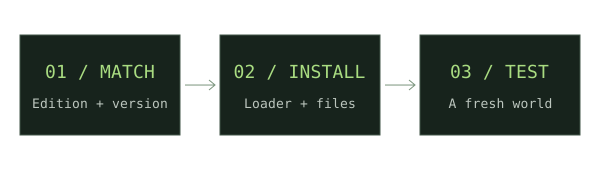
Java .jar mods and Bedrock add-ons use different installation paths. Open your launcher or title screen and write down the exact edition and version.
Choose a matching release
Open the original mod project. Check its Files tab for your exact Minecraft version and loader. Read its dependencies and client/server requirements.
Prepare a separate profile
Back up your world. Create a dedicated game directory and install the loader required by the chosen file, using its developer’s installer.
Add the files
For Java, place the mod and required dependencies in that profile’s mods folder. Start the matching loader profile. For Bedrock, follow our add-on guide.
Verify in a test world
Check startup logs and test in a new world first. If a dependency is missing, use its original project page to find the required version.
If something does not work
A crash is not proof of a broken mod. Check the Minecraft version, loader version, Java requirement, duplicate files, and missing dependencies before changing your world.
For new weapon downloads, start with our Minecraft Throwing Disc field guide, then compare Pokato’s Java mod and CadenceDev’s Bedrock add-on against your setup.
Sources & verification
Primary sources take priority. A listed source establishes declared support; it is not an in-game test.
Developer documentationInstalling mods — Fabric player documentationFabricMC · Verified Nov 17, 2026Developer documentationMinecraft Forge downloadsMinecraft Forge · Verified Nov 17, 2026Developer documentationNeoForge installers and documentationNeoForged · Verified Nov 17, 2026